Tracking time in a tool (Linear, ClickUp, Jira, a simple Google Sheet)? Instead of retyping each line, paste the table into Bill Alps and let AI generate the invoice.
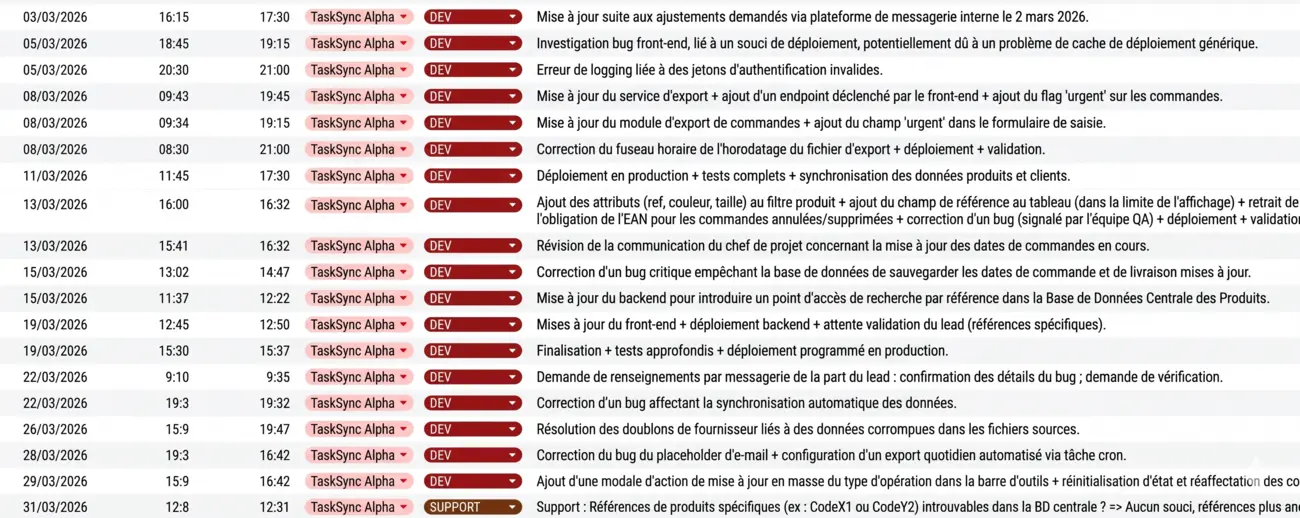
1. Prepare the source table
The AI accepts any tabular format: CSV export, screenshot, copy-paste from a spreadsheet. The clearer the columns (date, start time, end time, category, description), the better the result.
2. Open the AI panel
- In the invoice editor, click Fill with AI above the line items table.
- Paste your source table into the text area (CTRL+V).
- Enter the instruction prompt — it drives the output format.
3. Prompt example
For the table above, a prompt that works well:
The description must follow the format: [SUPPORT/DEV] {{date}} from {{debutHeure}} to {{finHeure}}: description.
Compute the duration in hours to fill the quantity.
The hourly rate is 85 EUR.4. Review and correct
The generated lines appear in the editor. Check that:
- Dates and times match the source table.
- Quantities (hours) are correct, especially for spans crossing noon.
- Unit price and currency are the expected ones.
- No line was missed or duplicated.
5. Typical use cases
- Freelancers and consultants: turn a monthly timesheet into an invoice.
- Agencies: re-bill support tickets from a tracking tool.
- IT providers: bundle recurring interventions per client monthly.
- Trainers: bill a schedule of sessions to an organisation.